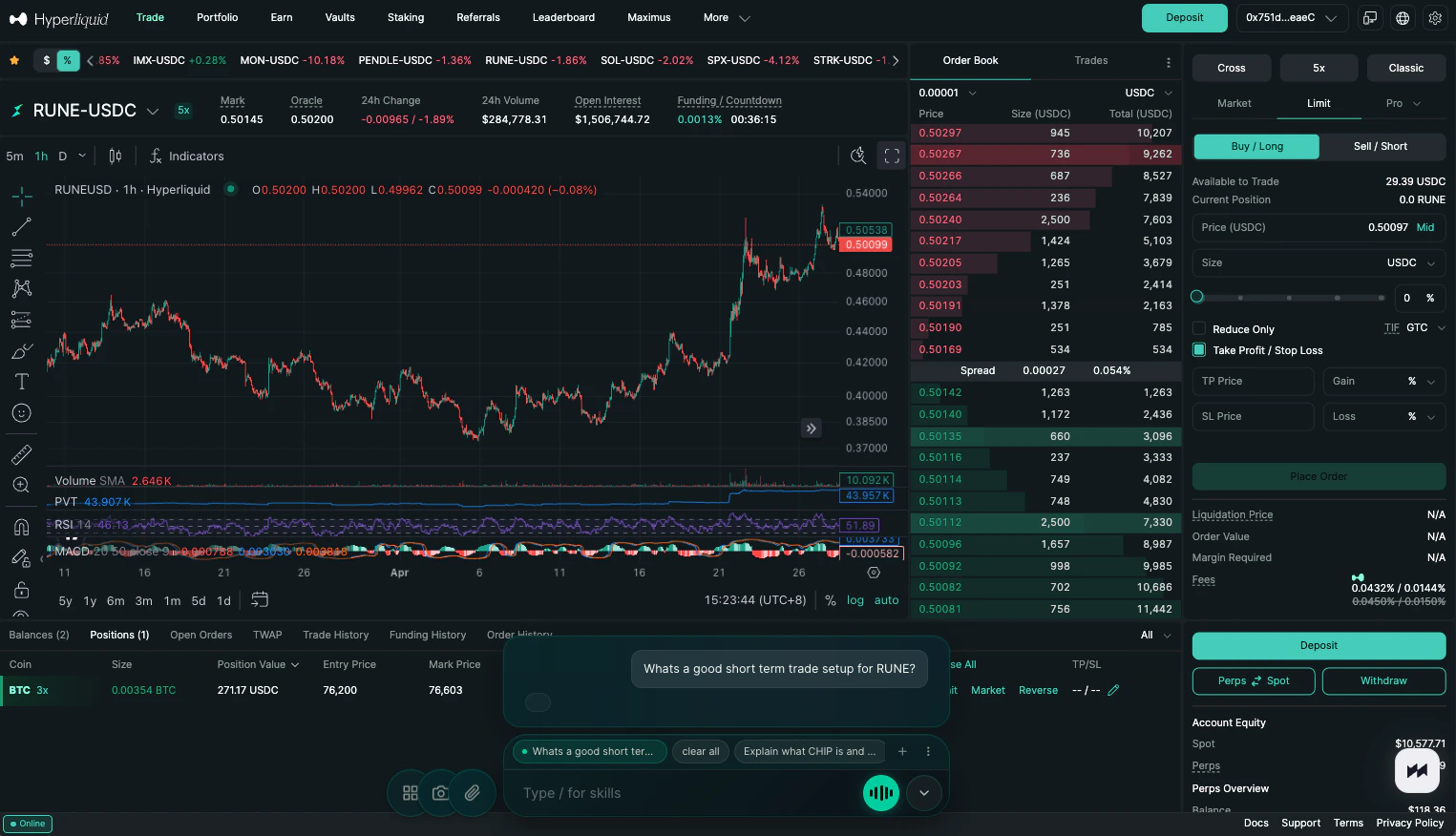
The side panel
When you open HyperLiquid with Maximus installed, the Maximus side panel loads on the right side of the screen by default. It sits over the HyperLiquid order form. You can reposition and resize the panel by dragging it wherever you want on screen. It stays where you put it.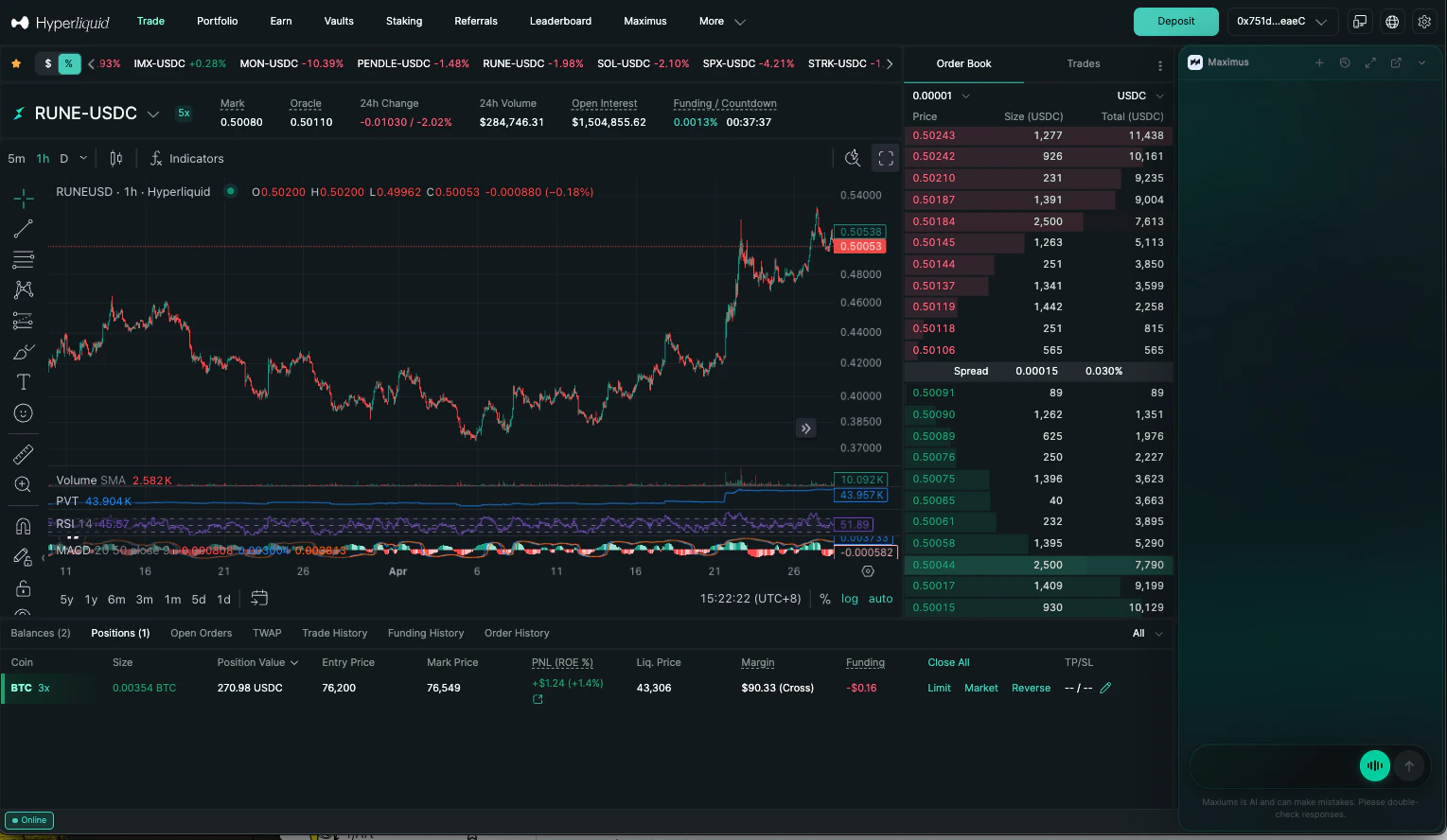
Minimizing and reopening
Click the Maximus button in the bottom left of the panel to minimize it. The panel collapses and your full HyperLiquid interface is restored underneath. Click it again to reopen. When minimized, a small Maximus header remains visible in the top right corner so you can get back to it at any time.The prompt bar
The prompt bar sits at the bottom of the side panel. Type a question, a trade command, or/ to browse chart skills. The voice button on the right lets you speak instead of type.
Previous conversations are saved as tabs so you can switch between threads or clear them as needed.
The Magic Bar
Press ⌘ Shift K to open the Magic Bar. It appears as a floating bar at the bottom of your screen, independent of the side panel. Use it to research any asset, place any order, or ask any question without opening the full panel. Press ⌘ Shift K again to close it.